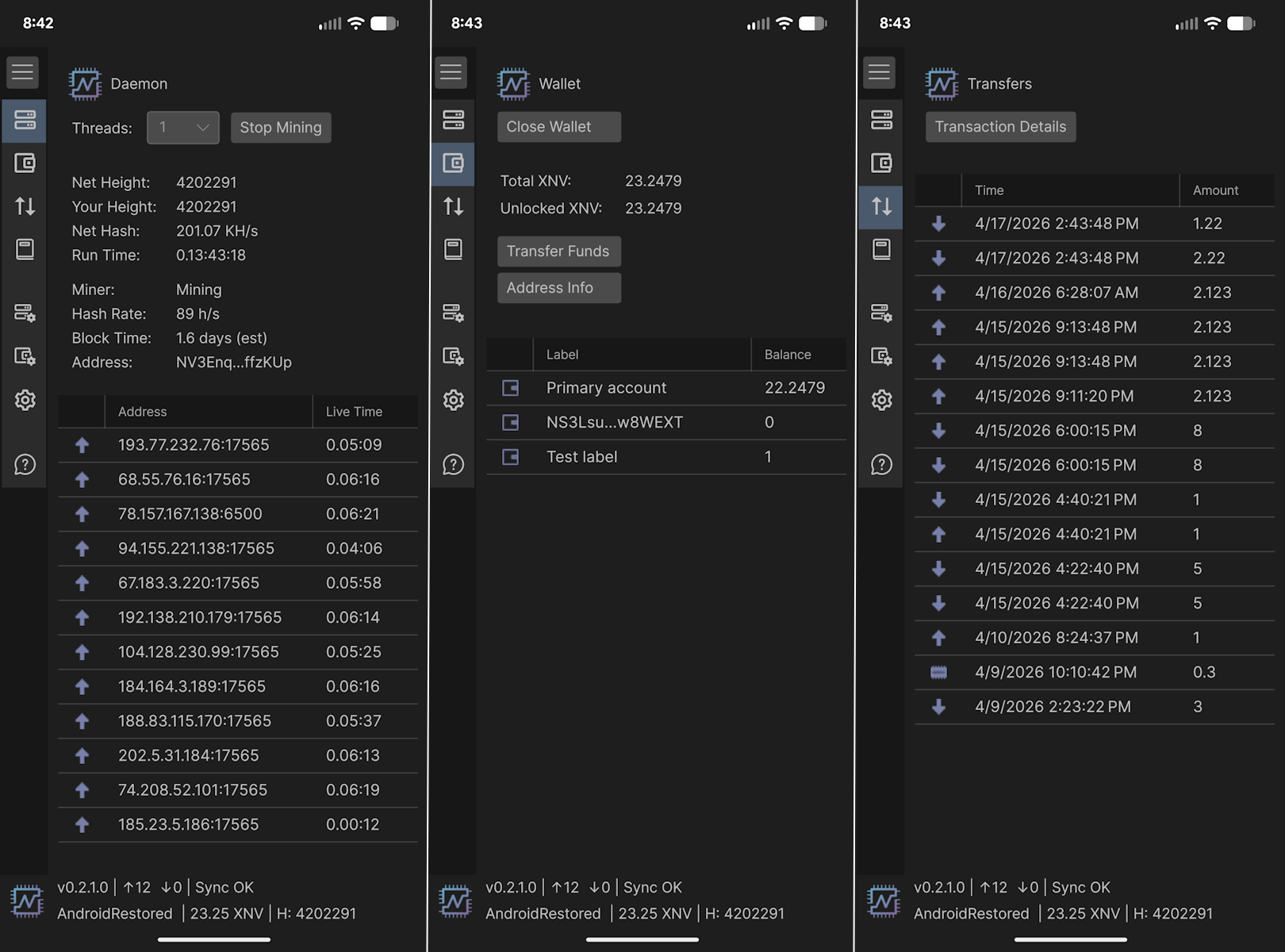
Most cryptocurrency mining requires expensive GPUs or dedicated ASIC hardware. Nerva is different. It’s designed specifically for CPU mining, which means any standard computer can participate. With the release of NervaOne v1.0.0, that now includes your Android phone.
This guide walks you through getting started.
What you need
An Android device (ARM64) and a bit of patience for the initial sync. No special hardware, no technical background required.
Step 1: Download NervaOne
Go to nerva.one/#downloads and download nervaone-v1.0.0-android-arm64.zip. Extract the ZIP to get the APK file.
Step 2: Install the app
Android will ask you to allow installation from unknown sources since NervaOne isn’t on the Play Store. Go to Settings > Security and enable “Install unknown apps” for your file manager, then open the APK to install.
Step 3: First launch
Open NervaOne and select Nerva (XNV) as your cryptocurrency. Then choose your operating mode:
- Full Node – runs the blockchain locally and enables mining. Choose this.
- Wallet Only – connects to a remote node, no mining. Good for checking balances on limited storage or mobile data.
Step 4: Synchronize the blockchain
Before you can create a wallet or mine, NervaOne needs to sync with the Nerva blockchain. If you’re below 90% synchronized, the app will offer to use a QuickSync file – accept this to significantly speed up the process. Wait until sync completes before continuing.
Step 5: Create your wallet
Once synced, go to Wallet Setup > Create New Wallet. You’ll receive a 25-word mnemonic seed and keys. Write this down and store it somewhere safe offline. This is the only way to recover your funds if you lose access to your device. Never share it with anyone.
Your XNV address will be visible in the Wallet section. Copy it, you’ll need it in the next step.
Already have a wallet?
If you’ve mined Nerva on desktop before, you can just use the same wallet to mine. No need to create or restore wallet on your Android device.
Step 6: Set your mining address
Go to Daemon Setup > Mining Address, paste your XNV wallet address, and tap Save Settings.
Step 7: Start mining
Navigate to the Daemon screen, pick number of threads you want to mine with and press Start Mining. Your phone is now contributing to the Nerva network.
A note on battery and heat
Mining uses your phone’s CPU continuously. If you run at high thread counts, expect your device to get warm and your battery to drain quickly. It’s best to mine while plugged in. You can reduce the number of mining threads in Daemon screen to find a balance between performance and heat that works for your device.
A note on mobile mining
Phone CPUs are less powerful than desktop processors, so your mining output will be modest. Think of it as contributing to the network’s decentralization rather than a primary income source – but it’s a legitimate, fully functional node running in your pocket.
Block rewards are currently 0.3 XNV with 60-second block times, shared across all active miners.
Join the community
Nerva has been running for eight years, fully community-driven since 2021. If you run into questions, the Discord and Telegram communities are active and helpful.
NervaOne Documentation: https://docs.nerva.one/guides/nervaone/